How to Reconcile a Bank Account in QuickBooks Online
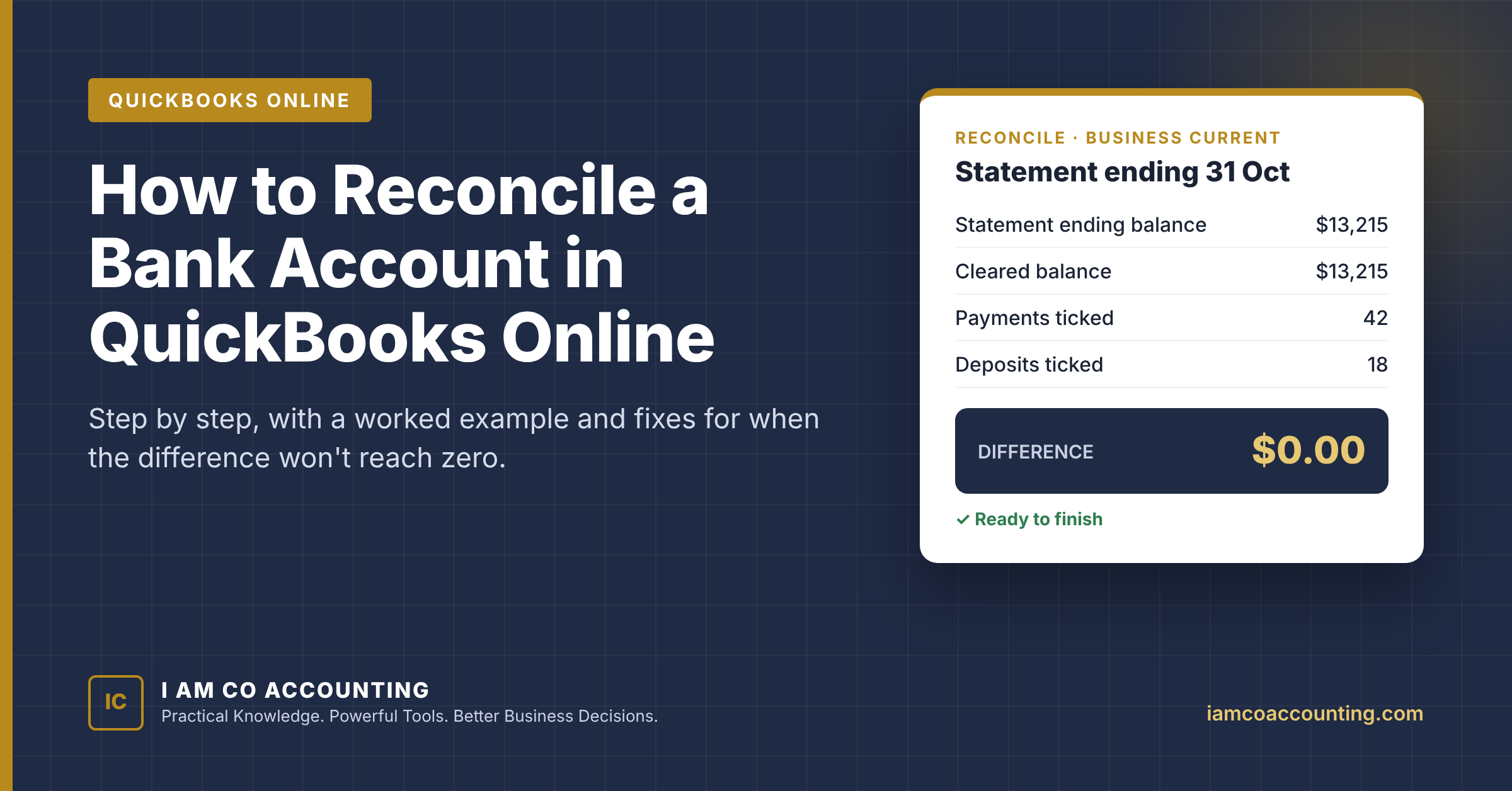
The bank balance in QuickBooks Online is only useful if it is true. Connecting a bank feed helps, but it does not guarantee accuracy. Transactions get matched to the wrong invoice, duplicates slip in when a feed reconnects, and payments that were recorded manually never appear on the statement. Reconciling is how you prove the balance in QuickBooks agrees with the bank, line by line.
This guide explains what a bank reconciliation is checking, shows the logic with a simple worked example, then walks through the exact steps in QuickBooks Online and what to do when the difference refuses to reach zero.
What a bank reconciliation proves
Your bank statement and your books record the same money from two different points of view. They rarely agree on the same day, for perfectly normal reasons:
- Outstanding payments: cheques or transfers you have recorded but the bank has not processed yet.
- Deposits in transit: money you have recorded as received but that has not yet reached the account.
- Items only the bank knows about: bank charges, interest and direct customer transfers you have not recorded yet.
A reconciliation explains every one of those differences. When it is done, the reconciled balance is a figure you can rely on for decisions, tax returns and lenders.
A worked example before you open QuickBooks
Seeing the logic on paper first makes the QuickBooks screen much easier to follow. Here is a hypothetical example for a small trading business at 31 October.
The bank statement shows an ending balance of $13,215. QuickBooks shows a bank account balance of $12,480. Comparing the two records line by line reveals:
- A $640 customer deposit recorded in QuickBooks on 31 October that the bank only credited on 1 November (deposit in transit).
- A $1,150 supplier cheque recorded in QuickBooks that has not yet been cashed (outstanding payment).
- A $250 customer bank transfer on the statement that was never entered in QuickBooks.
- A $25 monthly bank charge on the statement that was never entered in QuickBooks.
| Bank side | Amount | Book side | Amount | |---|---|---|---| | Statement ending balance | $13,215 | QuickBooks balance | $12,480 | | Add: deposit in transit | +$640 | Add: unrecorded customer transfer | +$250 | | Less: outstanding cheque | −$1,150 | Less: unrecorded bank charge | −$25 | | Adjusted bank balance | $12,705 | Adjusted book balance | $12,705 |
Both sides arrive at $12,705, so the account reconciles. Notice what needs fixing in QuickBooks: only the two book-side items. The deposit in transit and the outstanding cheque are timing differences that will clear on next month's statement. You leave them unticked, and they carry forward.
QuickBooks Online does this arithmetic for you. Your job is to make sure every transaction is recorded and to tick only the items that appear on the statement.
Before you start
Have the bank statement for the month in front of you, either a PDF or the online banking view. You need the statement ending date and the ending balance.
If your account is connected to a bank feed, review the For review tab in the banking or transactions area and match or categorise every downloaded transaction up to the statement date. QuickBooks will not let you reconcile items still waiting for review.
If you are behind by several months, reconcile one statement at a time, starting with the oldest.
Step-by-step: reconcile in QuickBooks Online
Intuit has been updating the QuickBooks Online menus, so your screen may show one of two routes to the reconciliation page. Both lead to the same tool.
Step 1. Open the Reconcile page. In the newer layout, go to All apps, then Accounting, then Reconcile. In the older layout, select the gear icon (Settings) and choose Reconcile. If this is your first reconciliation, select Get started.
Step 2. Choose the account. From the Account dropdown, select the bank account that matches your statement. Check the Last statement ending date shown. Your new statement should start the day after it. If it does not, you may be skipping or repeating a month.
Step 3. Enter the statement details. Type the Ending balance and Ending date exactly as they appear on the statement. If the statement shows service charges or interest you have not recorded, you can enter them in the optional fields here, or record them beforehand as normal transactions.
Step 4. Start reconciling. Select Start reconciling. QuickBooks lists every uncleared payment and deposit up to the ending date.
Step 5. Tick what appears on the statement. Work through the statement and tick each matching transaction in QuickBooks. Tick only items that appear on the statement. In our example, you would leave the $640 deposit and the $1,150 cheque unticked.
Step 6. Add anything missing. If the statement shows something QuickBooks does not have, like the $250 transfer and $25 charge above, record it. You can open a new tab to enter the transaction, then return and refresh the reconciliation screen.
Step 7. Check the difference. When the Difference at the top of the screen shows $0.00, select Finish now. QuickBooks saves a reconciliation report that you can view later from the Reconcile page under History by account.
Some accounts now have Intuit's AI-assisted reconciliation experience, which suggests matches for you. The principle does not change: you are confirming that every cleared item on the statement is in QuickBooks once, and only once.
When the difference will not reach zero
This is where most people get stuck. Work through these checks in order.
Check the beginning balance. The beginning balance on the reconcile screen should equal the ending balance of your last statement. If it does not, a previously reconciled transaction has been edited, deleted or unticked. The reconciliation history report and the audit log will show what changed.
Check the ending balance and date you typed. A transposed figure, such as $13,251 instead of $13,215, is one of the most common causes.
Look for the exact difference amount. Search QuickBooks for a transaction equal to the difference. If the difference is divisible by 9, you may have transposed two digits in an entry. If it is twice a transaction amount, that item was probably entered as a payment instead of a deposit, or the other way round.
Look for duplicates. Bank feeds sometimes download a transaction that was also entered manually. Two identical amounts on the same date are worth a closer look.
Check grouped deposits. Banks often show several customer payments as one deposit. If you recorded them separately, group them through Undeposited Funds or Payments to deposit and record a single bank deposit that matches the statement.
Avoid the temptation to force the reconciliation with an adjustment entry. QuickBooks allows it, but an unexplained adjustment hides the problem and usually makes next month harder.
How often should you reconcile?
Reconcile every bank, credit card and mobile money account each month, as soon as the statement is available. It is a core step in the month-end close checklist. Businesses with heavy transaction volumes often reconcile weekly so problems are caught while they are still small.
Get your QuickBooks working properly
If your reconciliations have not balanced for months, or you have inherited a QuickBooks file nobody trusts, that is fixable. Our team of professional accountants and Certified QuickBooks ProAdvisors does QuickBooks Online and Desktop setup, file clean-ups, backlog reconciliations and staff training for businesses in many countries. Book a free Financial Systems Health Check and we will review your file and tell you honestly what it needs. Setting up a new company file? Start with our guide to setting up QuickBooks Online the right way.
If you are learning bookkeeping yourself, The Practical Accountant explains reconciliations, the chart of accounts and month-end routines in plain English, with a worked case study you can follow. Get it for $19.99 or visit the I AM CO ACCOUNTING store.
Frequently asked questions
How do I reconcile a bank account in QuickBooks Online? Open the Reconcile page from All apps, Accounting, Reconcile (or Settings, Reconcile in older layouts), choose the account, enter the statement ending balance and date, tick every transaction that appears on the statement, add any missing items and select Finish now when the difference is zero.
Why is my QuickBooks reconciliation difference not zero? The usual causes are a wrong ending balance or date, a changed beginning balance from an edited past transaction, duplicate transactions, transactions recorded with the wrong sign, or grouped bank deposits recorded as separate payments.
Should I tick transactions that are not on my bank statement? No. Only tick items that appear on the statement. Outstanding cheques and deposits in transit stay unticked and will clear on a later statement.
Can I undo a reconciliation in QuickBooks Online? QuickBooks Online Accountant users can undo a reconciliation. Other users can untick individual transactions in the account register, but this should be done carefully because it changes the beginning balance for the next reconciliation.
Is reconciling the same as matching bank feed transactions? No. Matching connects downloaded transactions to records in QuickBooks. Reconciling confirms that the total of your cleared transactions agrees with the bank statement for a specific period.
Menu names and features in QuickBooks Online vary by region, subscription and layout version, and Intuit updates them regularly. I AM CO ACCOUNTING is not affiliated with Intuit. For Intuit's own instructions, see Reconcile an account in QuickBooks Online and Fix issues at the end of a reconciliation.
Written by the I AM CO ACCOUNTING team of professional accountants and Certified QuickBooks ProAdvisors. I AM CO ACCOUNTING is a business division of I AM CO GM (SL) LIMITED.
Need help applying this to your business?
Our accountants and QuickBooks ProAdvisors work with businesses and NGOs in Sierra Leone and worldwide.
Request a free consultationKeep reading
Segregation of Duties for Small Business: A Practical Guide
Segregation of duties for a small business, made practical: which tasks to split, compensating controls for tiny teams, and QuickBooks Online settings.
Business AdvisoryProfit vs Cash Flow: Why Profit Isn't Money in the Bank
Why a profitable business can still run out of cash, explained with a worked example, plus six practical ways small business owners can protect cash flow.